Default Cameras
Orion Drift comes with the following default camera modes. You can modify them to fit your own needs, but be aware that game updates will remove changes made in the game's install folder. The best way to modify or extend a default camera script is to copy the file into your user camera folder (C:\Users\[USERNAME]\Documents\Another-Axiom\A2\Cameras\Behaviors) and edit it there.
Each camera comes with a custom GUI, which can be viewed from the menu or via the F3 key.
X: Freecam
Controls:
- WASD or Left Gamepad Stick - Movement horizontally
- Q/E or Gamepad Triggers - Movement up and down
- Hold Alt to move vertically or horizontally along the gravity axis
- Mouse movement or Right Gamepad Stick - Pan
- Left Shift / Right Shoulder - Speed Up
- Left Control / Left Shoulder - Slow Down
- Caps Lock - Toggle smoothing
- Scroll wheel or Dpad Up/Down - Zoom
- Right mouse click and drag or Dpad Left/Right - Roll
Gravity:
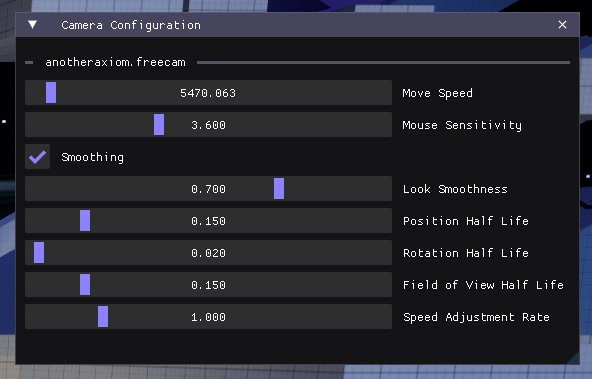
The freecam automatically aligns to the gravity of the current district. To reduce the abruptness of the transition, the speed of the automatic alignment is controlled by the speed of the rotation input (mouse or right gamepad stick). You can also disable gravity alignment in the camera settings
GUI:
P: Player Camera
Controls:
- Switch Between Players:
- Left and Right Arrow Keys or D-pad Left and Right
- OR left-click on a player to switch to them
- Change FOV: Shift + Scroll Wheel
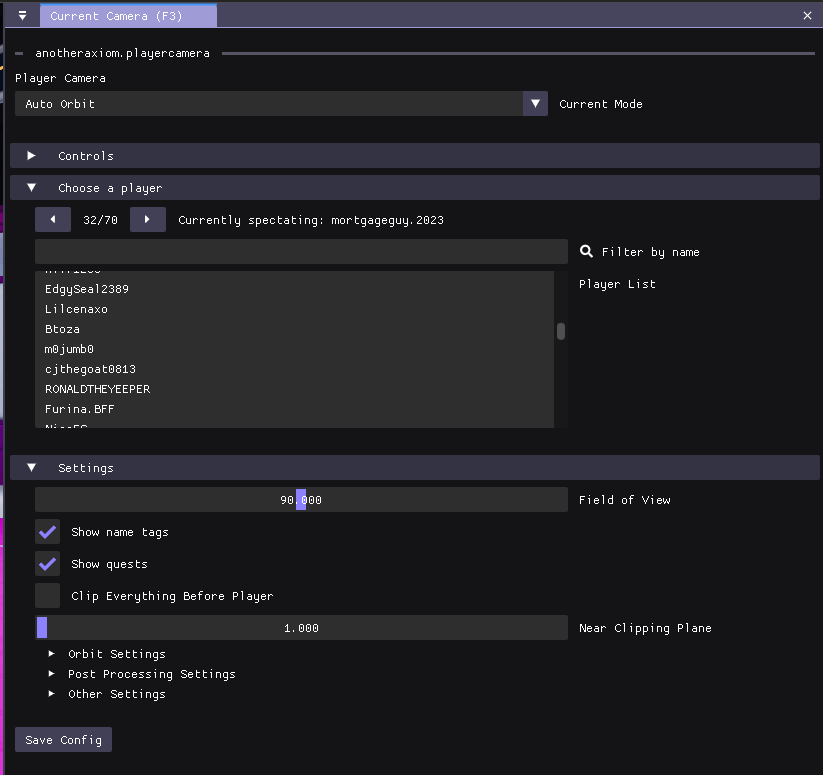
- Scroll out to switch to follow mode, which makes the camera follow behind the player's head
- Right click and drag or WASD or Gamepad Right Thumbstick to orbit around the player
- Change Orbit Radius: Scroll Wheel or Arrow Keys Up and Down or Gamepad Left Stick Forward and Back
- Spacebar to toggle between Manual and Auto orbit modes
GUI:
M: Animator
Create animations with keyframes on a timeline. Animations can include replay files, camera movements, or post processing effects.
T: Path planner
- Create or play back keyframe animations.
- To create animations:
- Press the
Vkey to add keyframes or click the button the GUI. - Then press
Ctrl+Sto save the current set of keyframes to the config file. This overwrites any previous keyframes. - To create multiple camera paths, copy the config file for the camera script
anotheraxiom.pathplanner.json.
- Press the
- To play back, press the
Bkey. - To clear the in-memory animation, press
Ctrl+R.
Y: Drone
Fly around the station with RC drone controls.
J: Ring Orbit
Orbits the camera around the station. The orbit radius, rotation speed, field of view, yaw, and pitch can all be adjusted in the camera's GUI.
Station Cam
Various preset cinematic locations.
Sideline Camera
A Driftball camera that automatically frames the ball from the sideline. It has no default keybind, so assign one in the Cameras panel (F2) to use it.
Analysis Scripts
Meant to run in the background rather than as the active camera (it always ticks). It draws world-space analysis data such as player trails and connecting lines, and can pull data from loaded replays. It has no default keybind.